I Tried to Give My Vector Robot AI Conversation. (I NEED YOUR HELP!)
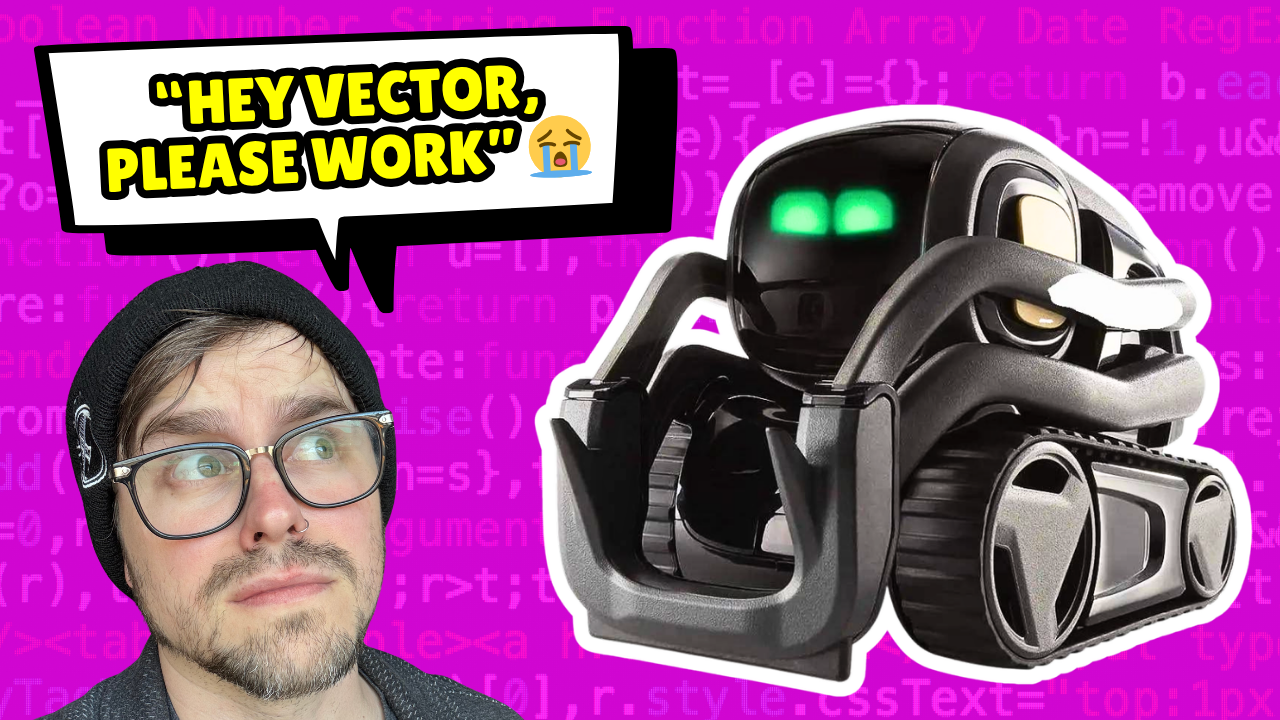
REAL TALK: I could not fully get this working, which is why I'm writing this article.
If you've been in the Vector community for any amount of time, you've seen people connecting him to local AI models through WirePod. The idea is great. Instead of Vector giving canned responses, you hook him into something like Ollama running on your own machine and he can actually hold a real conversation. People have pulled this off and the results look awesome.
I wanted to do it for my Vector video and document the whole process so you could follow along. I got further than I expected but hit a wall at the end that I can’t figure out on my own. I'm putting everything here, every step, every error, every thing I tried, in hopes that someone in the comments on the video knows what I'm missing. If you do, please tell me.
What You Need
Before You Start
Before any of this makes sense, you need a few things in place:
Vector must already be running on WirePod. If you haven't set that up yet, go do that first. WirePod is an open source server replacement for Vector that runs locally on your computer. It keeps Vector connected and functional without needing Anki or DDL's servers. You can find it at github.com/kercre123/wire-pod.
You need Ollama installed. Ollama lets you run large language models locally on your machine. No API key, no subscription, no data leaving your house. Download it at ollama.com.
You need Python 3 installed. On Mac, this might trigger a developer tools install the first time you run it. Just let it happen.
Step 1: Download Ollama and Pull a Model
After installing Ollama, open Terminal (Mac/Linux) or Command Prompt (Windows) and run:
ollama pull llama3
This downloads the Llama 3 model. It is around 4GB so give it a minute. Once it is done, Ollama will run automatically in the background. You do not need to manually start it every time.
To test that it is working, run:
ollama run llama3
Type something and make sure you get a response back. If it answers, you are good to move on.
Step 2: Install the Requests Library for Python
You need Python's requests library to make HTTP calls to Ollama. Run this in Terminal:
Mac / Linux
pip3 install requests
Windows
pip install requests
Step 3: Create the Python Script
This script takes Vector's voice input, sends it to Ollama, and speaks the response back. Create a new file called vector_chat.py and paste this in:
import requests
import sys
import subprocess

user_input = " ".join(sys.argv[1:])

response = requests.post("http://localhost:11434/api/generate", json={
    "model": "llama3",
    "prompt": user_input,
    "stream": False
})

answer = response.json()["response"]
answer = answer.replace('"', '').replace("'", '').strip()
answer = answer[:300]

subprocess.run(["say", answer])
Save this file to:
say command at the end is Mac-specific. On Linux, replace it with espeak. On Windows, use a tool like pyttsx3 or PowerShell's built-in speech API.Test it by running:
python3 /Users/yourusername/vector_chat.py "what is the moon made of"
If your computer speaks the answer out loud, the script is working.
Step 4: Set Up the Custom Intent in WirePod
This is where you tell Vector to listen for certain phrases and trigger your script when he hears them. Open WirePod in your browser at localhost:8080 and click Custom Intents.
Fill out the form like this:
Custom intent name
chat_with_ollama
Custom intent description
Have a conversation with an AI
Utterances (separated by commas)
let's chat, talk to me, I have a question, chat with me, let's talk
Intent to send to robot after script executed: Change this dropdown away from intent_greeting_hello. That intent triggers Vector's default greeting animation and it will fight with your script. Use intent_imperative_praise or another neutral option from the list.
Path to script — Mac
/Library/Developer/CommandLineTools/usr/bin/python3
Path to script — Linux
/usr/bin/python3
Path to script — Windows
C:\Python311\python.exe
Arguments
/Users/yourusername/vector_chat.py,{utterance}
Leave the Lua code field blank. Click Add Intent and then try saying one of your trigger phrases to Vector.
Step 5: Check the Log
After you trigger Vector, go to localhost:8080 and click Log. This is your best debugging tool. You want to see something like:
Intent matched: chat_with_ollama, transcribed text: 'let's chat', device: [your device id]
Here is what each result means:
chat_with_ollama matched: Vector heard you and the right intent fired.intent_system_unmatched: Vector heard you but did not recognize the phrase. Try different wording.intent_greeting_hello instead of your custom intent: The utterance matched but the wrong intent fired. Check your dropdown selection.I got Vector to hear me. I got the Python script working on its own. I confirmed Ollama was running and responding. But getting Vector to actually speak the response back through his own speaker is where things fell apart.
The issue is in how WirePod handles the script output. Vector hears the trigger phrase, the intent fires, the script likely runs, but the audio response never comes out of his speaker.
I also tried using Lua code directly in WirePod. WirePod has built-in functions like sayText() and assumeBehaviorControl() that are supposed to make Vector speak. But every time I tried, Vector either made a shutting-down sound or just went quiet.
Things I tried that did not work:
- wirepod.http.post in Lua (function does not exist in this version)
- socket.http in Lua (library not available)
- /ok-say and /say API endpoints (returned 404)
- assumeBehaviorControl() before sayText() (caused Vector to make a power-off sound)
If you have gotten further than this, I genuinely want to know how you did it. Drop it in the comments on the video below.
Watch the Video
If you’ve figured out the missing piece, drop it in the comments on this video once clicking on it. I will update this article and pin the solution when someone cracks it!
Quick Reference by Platform
Python path:
/Library/Developer/CommandLineTools/usr/bin/python3
TTS command:
subprocess.run(["say", answer])
Script location:
/Users/yourusername/vector_chat.py
Python path:
/usr/bin/python3
TTS command:
subprocess.run(["espeak", answer])
Script location:
/home/yourusername/vector_chat.py
Python path:
C:\Python311\python.exe
TTS command:
Use pyttsx3 or PowerShell speech
Script location:
C:\Users\yourusername\vector_chat.py
Resources
Have you gotten Vector talking with a local LLM? Drop it in the comments on the video. I will feature working solutions in a follow-up post!